
Whatnot Video Receipts for Sellers: Where to Find Them, How Long They Last, and a Faster Way to Know Who Bought What
Sellers find video receipts in Seller Hub on whatnot.com, under Orders or Shipments. They last 60 days. Where each one is, on a computer or in the app.
A Whatnot video receipt is a short clip of the moment an item was featured in your show, such as when it was auctioned or pinned. As a seller you find them in Seller Hub on whatnot.com, and they last 60 days after the purchase. They’re great for settling “which one was it?” They’re slow for working out a whole show. Backstage records every sale by name while you sell, so you rarely have to go back through them.
Here’s where each video lives and what it’s good for, from Whatnot’s help center as of October 21, 2026.
On a computer or in the app? It depends on the video and on who’s watching:
- Video receipts, for sellers: on a computer, in Seller Hub on whatnot.com.
- Full show recordings, for sellers: in the Whatnot app only, under your past shows.
- Video receipts, for buyers: in the Whatnot app only.
Both kinds of video last 60 days. Whatnot doesn’t save the chat from past shows at all.
Video receipts: one clip per sale
A video receipt shows the moment an item appeared during your show, for example when it was auctioned or pinned. If the item sold during a Card Break, the video receipt is the full show instead of a clip.
Where to find one, on whatnot.com:
- From Orders: Seller Hub, then Orders. Select the order, scroll to Order Details in the right sidebar, and click Video Receipt.
- From Shipments: Seller Hub, then Shipments. Find the order, click Expand under the buyer’s username, and click Video Receipt.
How long: 60 days after the purchase. After that it’s gone.
Your buyers get one too, in the Whatnot app under Activity, then Purchases. The app shows them how many days are left.
Past shows: the full recording
Whatnot also keeps a full recording of every show you host, called a Video on Demand, for 60 days after the show ends. These are in the Whatnot app only, not on whatnot.com:
- Tap Seller Hub at the bottom of the screen.
- Open the menu in the top right.
- Go to Manage, then Shows, then Past, and tap the show.
While it plays you can jump to any point, see highlights like purchases and giveaways, and capture and download clips to share. Chat history from past shows isn’t available, so if a buyer’s message mattered, screenshot it during the show.
Keeping a copy past 60 days
Whatnot’s help center doesn’t describe a download button on video receipts themselves. If you want to keep proof of a sale longer than 60 days, there are two ways to do it with Whatnot’s own tools:
- After the show: open the past show in the app, jump to the moment, and capture and download a clip.
- During the show: tap Clip on the right of a live show to save the last 60 seconds, then choose Download to save it to your phone. Clips are private until you publish them, and they need to be at least 5 seconds long.
Worth doing for anything a buyer is likely to question later, like a big hit, a graded card, or an item with a flaw you pointed out on stream.
What video receipts are good for, and where they slow you down
Good for:
- Checking which item a buyer won when two look alike.
- Answering a buyer who says they got the wrong thing.
- Showing what you showed live, if a buyer reports an item as not as described. That matters for returns and refunds.
- Clips for social, from the full recording.
Slow for:
- Packing a whole show. Opening a receipt per order to work out who bought what is the slowest way to pack 80 sales.
- Anything after 60 days. If a question comes up in month three, the video is gone unless you saved a clip.
- Mystery and lookalike items that were never pinned or named clearly on stream.
Record the show while it happens instead
The faster way is to never lose track in the first place. Backstage runs beside your show, in Chrome or as a native iPad app, and records each sale the moment it happens:
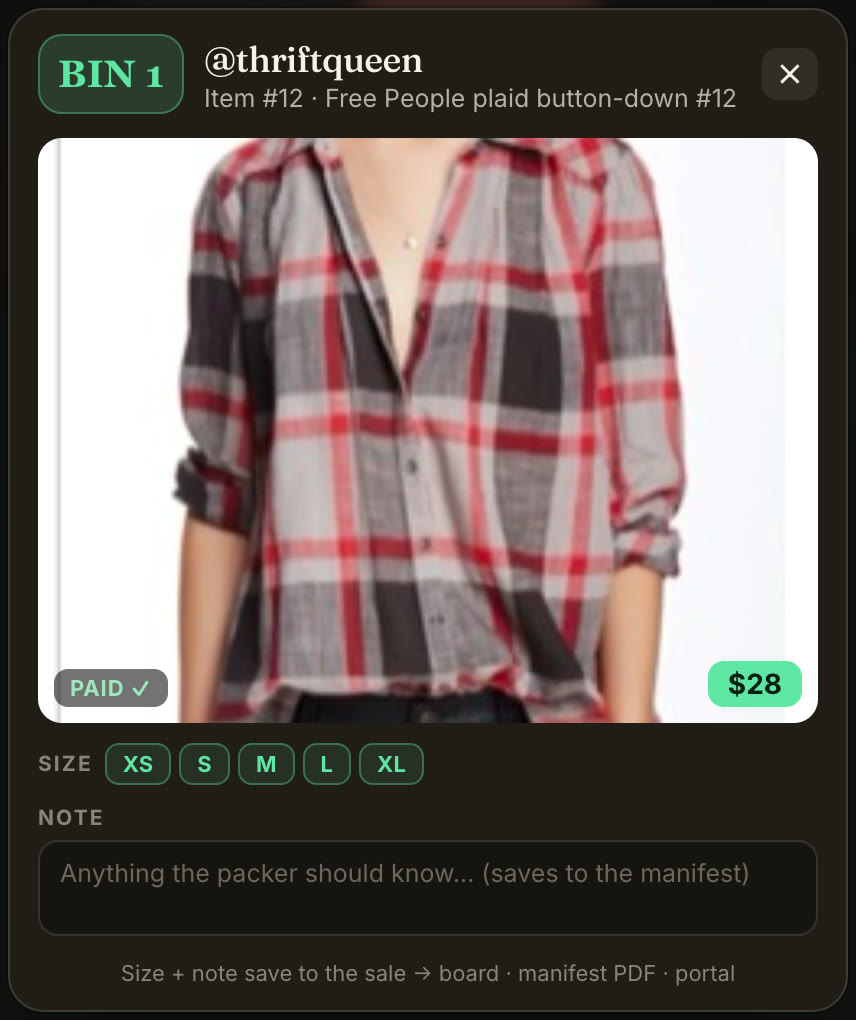
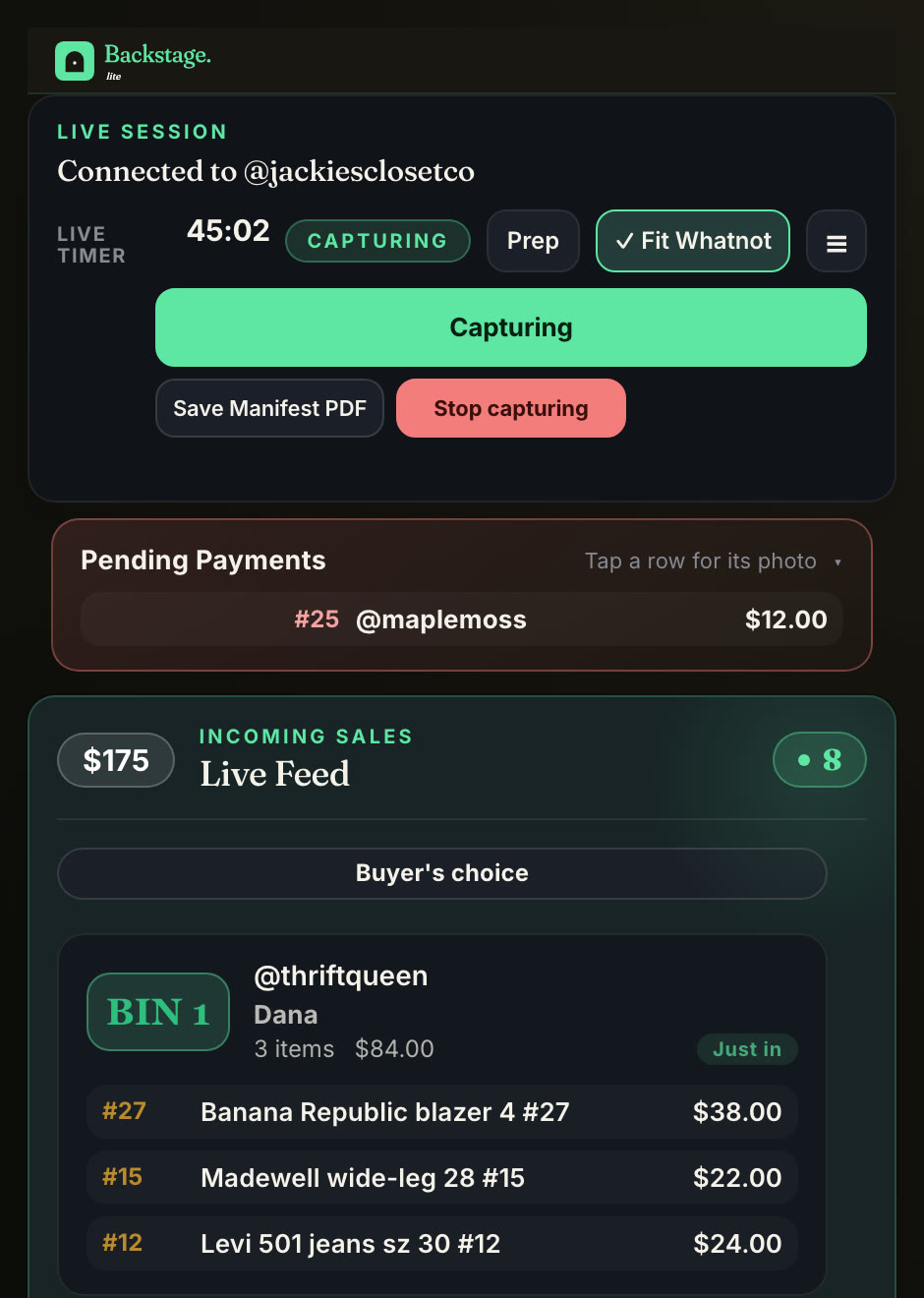
- Every sale by name, with the item, the price and the time. In Chrome, turn on Sale screenshots in Settings and most sales also get a photo from the stream, so you can see exactly which item went.
- A bin for every buyer, assigned on their first win and kept all show, so the pile on your table is already sorted by buyer.
- A bin label as the item sells, on the Plus and Pro plans with a label printer.
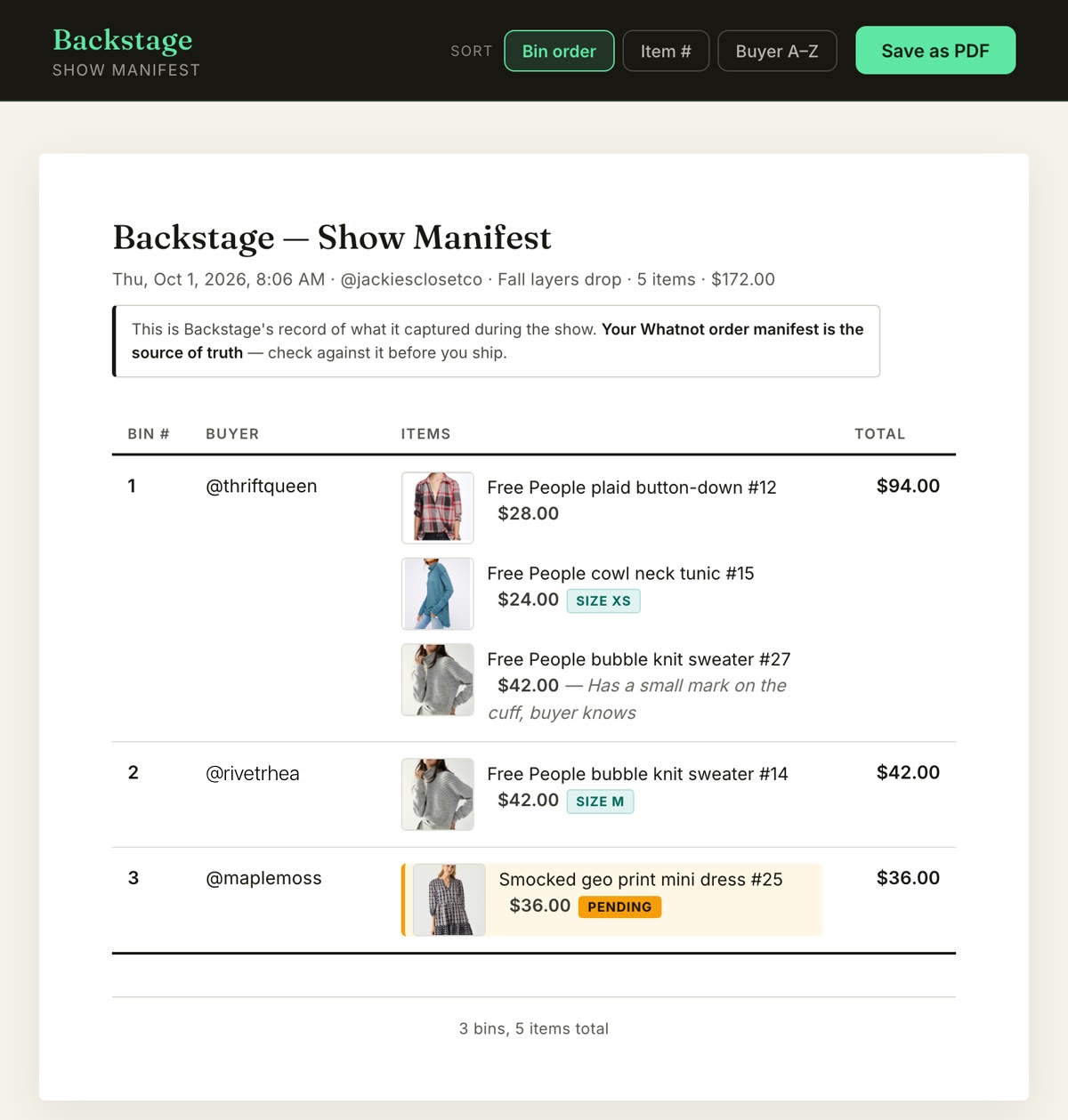
- A packing manifest at End Show, grouped by bin. Sort it by buyer name and it lines up with the Shipments page in Seller Hub.
Then the video receipt goes back to being what it’s best at: the backup for the odd question, not the way you pack.
Next steps
- Orders, Shipments and the Show Report: Whatnot order management.
- Pack one bin per box: how to ship Whatnot orders faster.
- When a buyer reports a problem: returns on Whatnot for sellers.
- Every job in one place: Whatnot seller tools.