
The Best Whatnot Consignment Tracking Tool
Backstage is a consignment tracking tool for Whatnot: it tracks which consignor owns each item, records every sale against them live, splits the money using real Whatnot fees, and gives each consignor a free portal showing what sold and what they're owed. What a consignment tracking tool has to do, and how to choose one.
Backstage is a consignment tracking tool for Whatnot. It tracks which consignor owns each item, records every sale against them the moment it happens, works the split from what the item really earned after Whatnot’s fees, and gives each consignor a free portal showing what sold and what they’re owed. That is the whole job, and this page is about what “tracking consignment” has to mean for it to actually save you time.
If you sell other people’s items on Whatnot, the selling isn’t the hard part — the accounting is. Knowing which item belonged to whom, what sold, what each person’s split comes to after fees, and what you owe them: that’s where consignment quietly eats your evenings. A good consignment tracking tool takes all of that off your plate. Here’s what to look for, and how Backstage handles each piece.
What a consignment tracking tool actually needs to do
Most “inventory apps” that mention consignment stop at a spreadsheet with a consignor column. Running real consignment on Whatnot needs four things:
- Live sale attribution — every sale during the show lands against the right consignor automatically, not reconstructed afterward.
- Correct split and fee math — each consignor’s agreed percentage, with real fees subtracted, calculated for you.
- Consignor-facing visibility — each consignor can see their own sales and balance without DMing you for updates.
- Terms in writing up front — the split, who covers fees, and the payout schedule agreed before anything sells.
Get those four right and adding your next consignor costs you almost nothing. Miss them and every new consignor adds another hour of midnight reconciliation.
Your options for tracking consignment on Whatnot
Here’s what sellers actually use, and where each one stops.
1. A spreadsheet (Google Sheets, Airtable, Excel). Free, flexible, and fine for two consignors and a slow week. The catch is that every sale goes in by hand after the show, you do the split and fee math yourself, and your consignors can’t see anything unless you send it to them.
2. Whatnot’s own reports. The Show Report CSV, downloaded from the Shipments page in Seller Hub, lists a show’s items, sale prices, fees and totals. The weekly orders report, under Financials and Statements, breaks each completed order into sale price, commission, processing and what you earned. Both are free and both come straight from Whatnot. Neither knows who owned the item, so matching items to consignors is still your job. And the weekly report only lists orders once the money is available for payout, so a show can be split across two weeks.
3. A general resale inventory app. Good for tracking your own stock across several marketplaces, with cost of goods and profit. Consignment, where it exists, is usually a column added on, and they generally aren’t built to follow a live show as it sells.
4. A tool built for Whatnot consignment. Backstage tags each item to its consignor at intake, attributes every sale to that consignor as it happens during the show, works the split from what the item really earned after Whatnot’s fees, and gives each consignor a free portal. The rest of this page is how that works.
How Backstage handles it
Tag once, at intake. The moment items come in, each one is tagged to the consignor who owns it. That single habit is what makes everything after it automatic — see how to manage consignors on Whatnot.
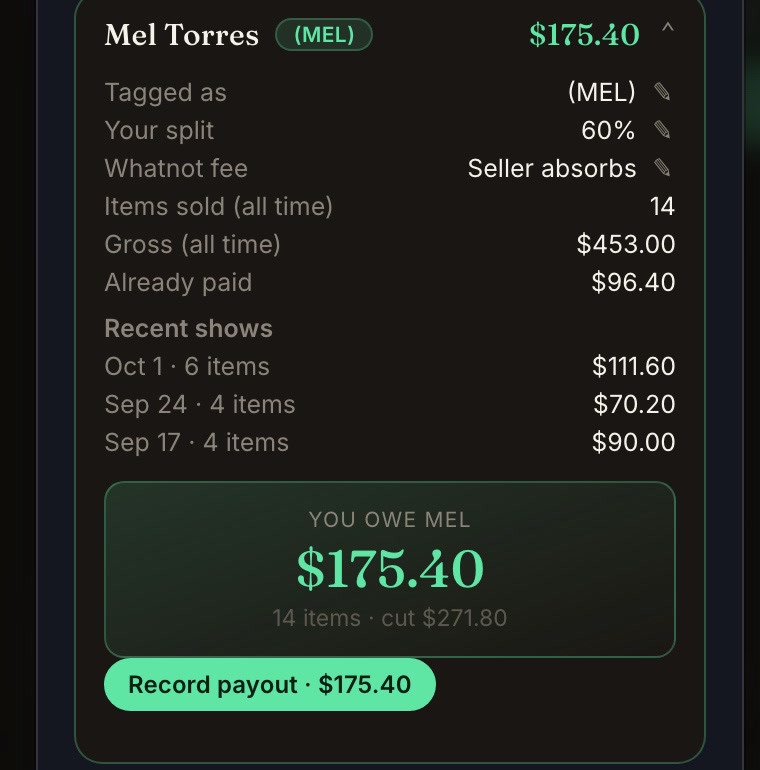
Attribution happens live. During the show, every sale is attributed to the right consignor as it sells — on iPad or Chrome. There’s no after-show detective work piecing together who owned what from screenshots.
The money math runs itself. Each consignor’s total is split by their agreed percentage, with fees subtracted using Whatnot’s own numbers, so payouts match what Whatnot actually paid. Need a different split on pricier items? Turn on Special terms in the consignor’s contract terms and add price steps, such as “$100 and up: 70%”; each item goes by its own sale price. You can also change the split on a single sold item. A change that pays the consignor less waits until they tap I agree in their portal. Settle the split and fees up front, and the arithmetic takes care of itself after every show.
Every consignor gets their own view. This is the piece almost no seller does well, and it’s the biggest trust-builder: each consignor gets a free Consignor portal. They pair once with a code, then see what’s shipped, what’s scheduled, what’s sold — with real photos of their sold items — and exactly what they’re owed, updating as sales land. They only ever see their numbers, never your full sale amounts. The status DMs stop, and payout disputes nearly vanish because the record is shared. See it from the consignor’s side.
Winning more consignors is built in. Your public profile can carry a “Consign with me” option, so people can apply to consign with you directly — turning your audience into your inventory pipeline.
A worked split, with real Whatnot fees
Say a consignor’s item sells for $40, the buyer pays $5.99 shipping and no sales tax, you’re at the 8% commission rate, and the consignor’s split is 60%.
- Whatnot’s commission: 8% of the $40 item price = $3.20. Commission is on the item price only.
- Payment processing: 2.9% of everything the buyer paid ($45.99) plus 30 cents = $1.63.
- What the sale earned after fees: $40 − $3.20 − $1.63 = $35.17.
Then it depends on what you agreed:
| How you agreed to handle fees | Consignor gets | You keep |
|---|---|---|
| Split after Whatnot’s fees | 60% of $35.17 = $21.10 | $14.07 |
| Split the sale price, you cover the fees | 60% of $40 = $24.00 | $16.00 − $4.83 = $11.17 |
That’s a $2.90 difference on one $40 item, which is why the fee rule belongs in writing before anything sells. Rates vary by category and sales tier; your current rate is on your Seller Hub home page, and the split calculator runs your own numbers. Backstage handles either arrangement, or a custom share of the fees, and uses Whatnot’s own numbers for each sale once Whatnot confirms it.
Tracking what sold is not tracking consignment
Consignment tracking asks whose item that was, what it earned once Whatnot took its cut, and what you now owe that person. Backstage tracks the sale for packing and attributes it to the consignor for the payout, in the same moment: each live sale lands on its consignor as it sells, the split uses Whatnot’s own fee numbers, each consignor sees their own numbers in a free portal, and adding the next consignor costs nothing extra.
Getting started
Consignment tracking is part of Backstage, and the Consignor portal is free for the people who consign with you. The fastest way to see it is to run a show on iPad or Chrome and add your first consignor — every sale that lands will attribute itself, and your consignor can watch their balance grow from their own portal.
Next steps
- Every job in one place: Whatnot seller tools, from sales capture and bins to labels and packing.
- What to buy, by job: the Whatnot seller toolkit, from label printers and bins to mailers and lights.
- New to the model? Start with what is consignment selling on Whatnot.
- Running several already? Read how to manage consignors on Whatnot.
- Understand the math: consignment splits explained.
- What a sale nets after Whatnot’s fees: the Whatnot fee calculator.
- How each sale is recorded live: the Whatnot sales tracker.
- See the consignment tools or run consignment on iPad.